Articles
Device Management Account - Alerts
Oct 20, 2026
With your Device Management account, you have the ability to setup your own alerts with your client's devices. Basically, the client can have their own alerts and you can have your own alerts on the same device. This works with the level alerts and ...
With your Device Management account, you have the ability to setup your own alerts with your client's devices. Basically, the client can have their own alerts and you can have your own alerts on the same device. This works with the level alerts and the disconnection alerts.

With the premium account, you will be able to setup as many alert set points as needed for yourself. Otherwise you are limited to 2 alert set points.
To setup the alerts, see the steps below:
- Log into PTDevices.com and navigate to "My Clients" in the Management section of your main menu.
- To setup alerts on the device of interest, find the device in the client list. Then click on the "eye" icon in the client detail or the "pencil" icon of the specific device.

- Select the "Alerts" tab to the right of the "Usage History" tab.
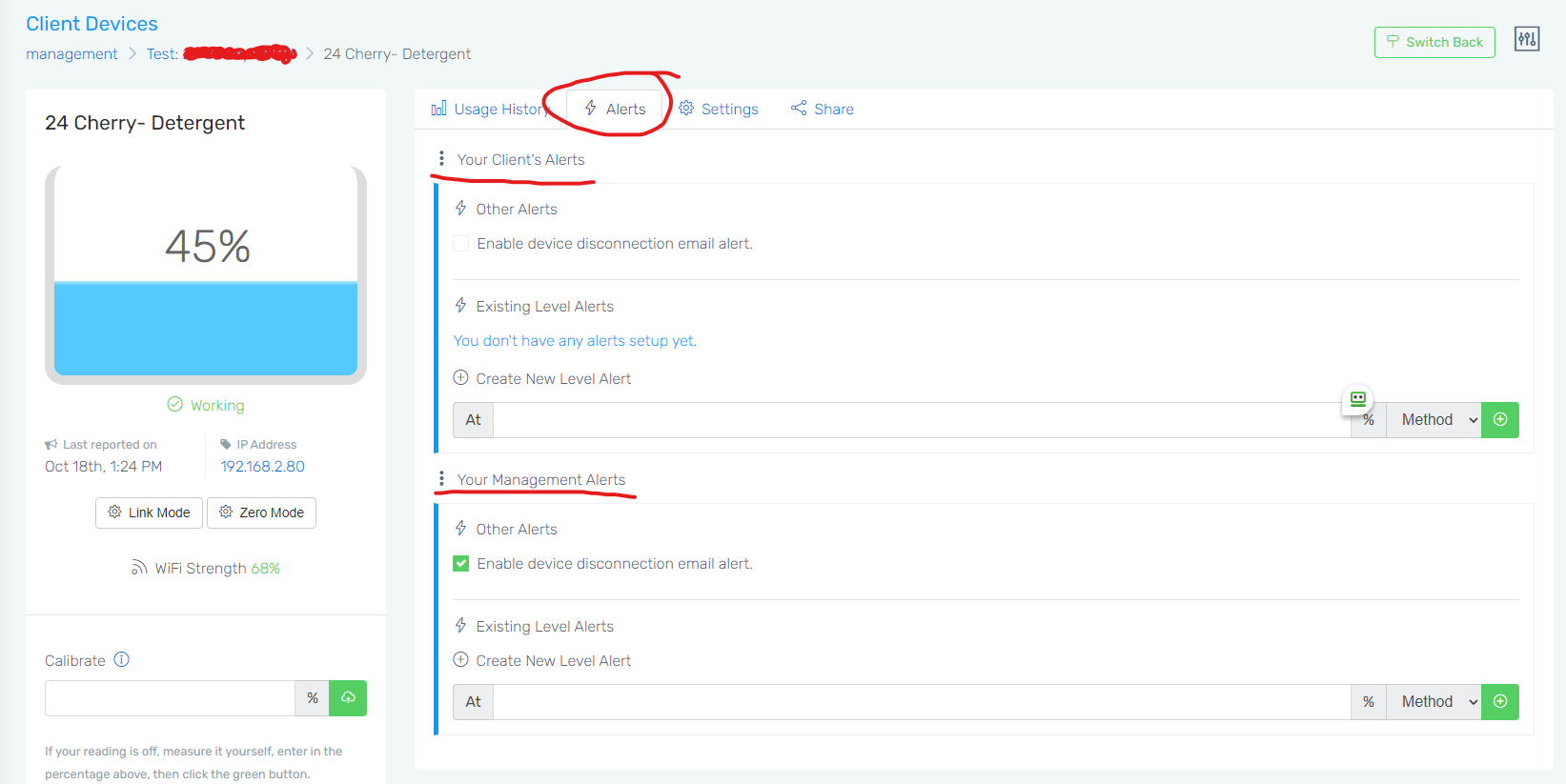
- You will see two sections, "Your Client's Alerts" and "Your Management Alerts". The first one is where you can setup and manage the alerts that your client gets in relation to this device and their account profile information. The second section is where you can manage the alerts that you will get with the related device.