Articles
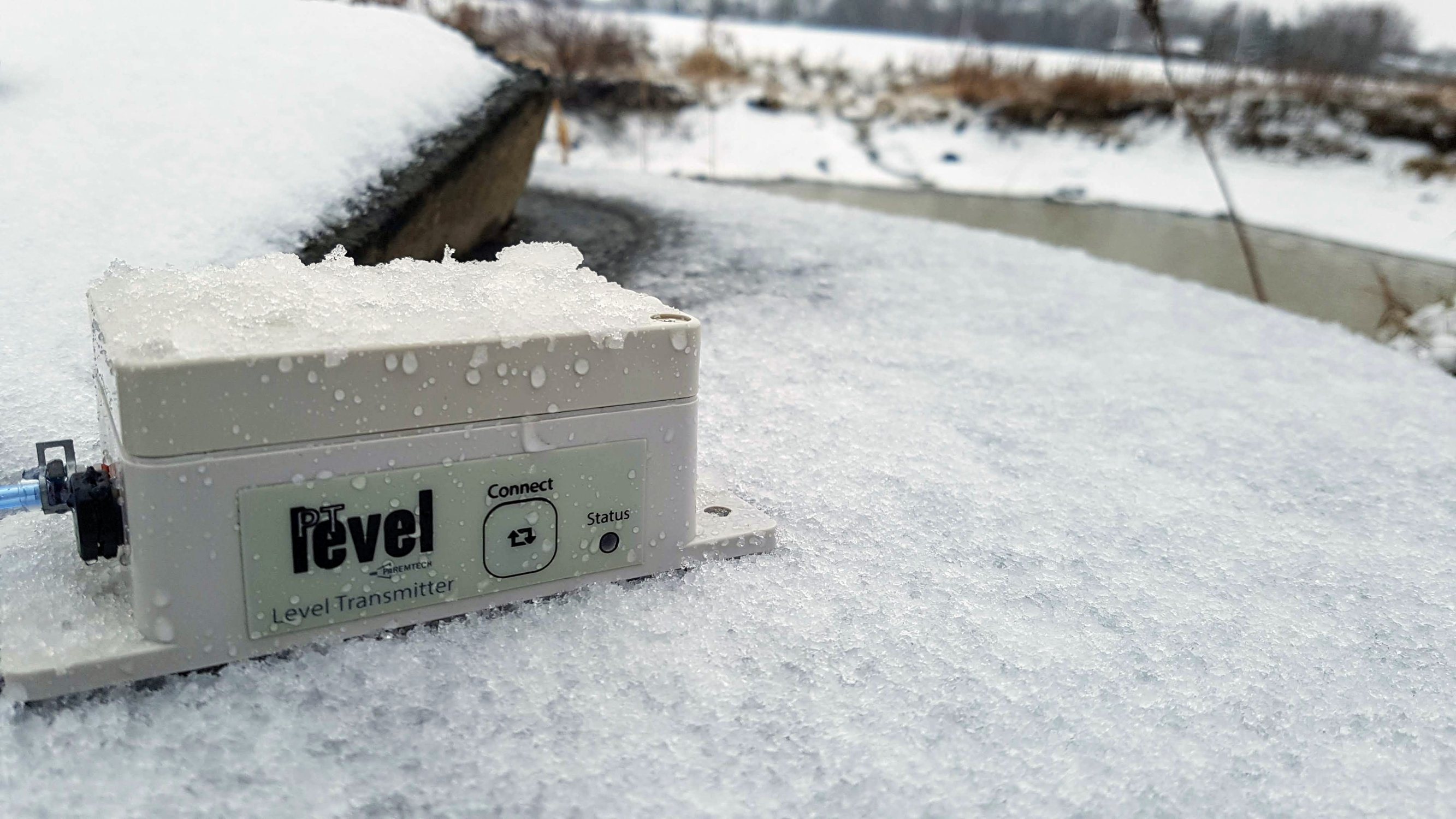
The PTLevel and 2.4Ghz Internet
Mar 18, 2026
The PTLevel is designed to only use 2.4GHz with 20mhz signals because 2.4 GHz connections have the most coverage. 5 GHz signals are great for faster speeds; however, they have shorter range.
Why only 2.4 GHz?
The PTLevel is designed to only use 2.4GHz with 20mhz signals because 2.4 GHz connections have the most coverage. 5 GHz signals are great for faster speeds; however, they have shorter range. We have designed the PTLevel with maximum WiFi Range as a priority since tanks and cisterns are often not directly next to routers.
If you have a mesh network, your PTLevel may initially connect fine, but then will drop the signal when your network automatically switches to 5 GHz.
Many other IOT devices such as doorbell cameras, remote lights/sockets, and window/door sensors are 2.4 GHz as well.
How to Split your 2.4 GHz and 5 GHz Internet for Most Providers:
Step 1. Log in to the Admin page of your router. (You may need to refer to the router documentation or contact your server provider for help with this).
Step 2. Locate your WiFi channels.
Step 3. Separate the channels, usually via a checkbox.
Step 4. Rename the channels with different names. We recommend adding the words "2g" and "5g" to the end of each SSID respectively.
How to Split your 2.4 GHz and 5 GHz Internet for Starlink:
If it is on 5GHz, you can go into your Starlink App and change it. Go into your Starlink app and select the the settings tab on the bottom, in here you will see Split 2.4/5GHz Networks. Toggle the switch to the right, you have enabled the split. This will create 2 networks. One for the 2.4GHz band that will be left the same as your existing SSID(networks) name and the other with a 5GHz beside it. Refer to this article for additional information: https://www.starlinkcommunityforums.com/post/starlink-device-connecting-issues.
If your WiFi is available but your internet is out (common for Starlink Beta users)
Your PTLevel receiver will stay connected but whenever your transmitter reports in during it's battery saving schedule, that report would get missed and the online system would assume that there is trouble. If this happens, you will likely get a message saying "Not Connected" on your account. As soon as your WiFi is available again your Receiver will connect back on it's own.