Artículos

Procedimiento de conexión WiFi

20 de oct. de 2026

CONECTE SU PTLEVEL Ir arriba A continuación encontrará un par de videos sobre cómo conectar su receptor PTLevel a su WiFi en casa. Necesita hacer esto si lo está configurando por primera vez o si cambió la contraseña de su red doméstica o el SSID de la red ...

Connecting to WiFi

Our new iOS and Android App makes the connection process easy! 

1. Download the PTDevices App

2. Setup a new device.
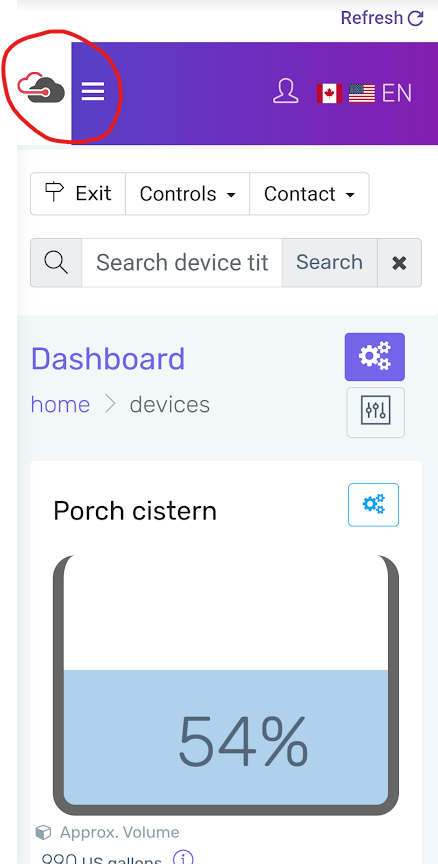
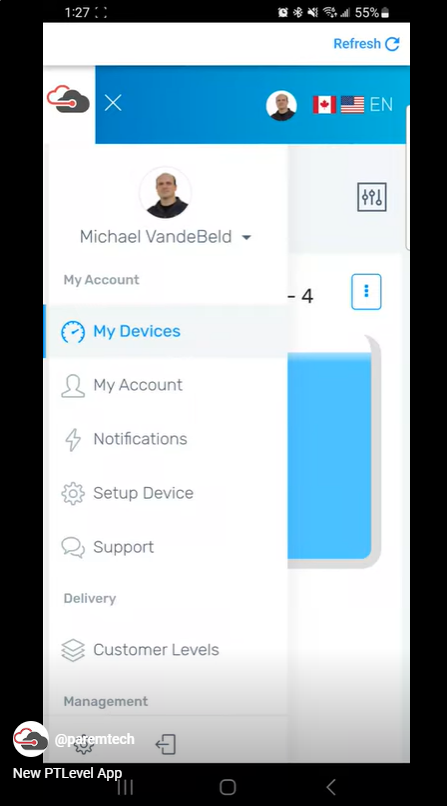
a. Press the 3 lines in the top left to access all your options, then select "Setup Device"
Dashboard screen with the three-line menu icon at the top left circled in red, next to the cloud logo  PTDevices App menu open on a phone, with the Setup Device option listed under My Account

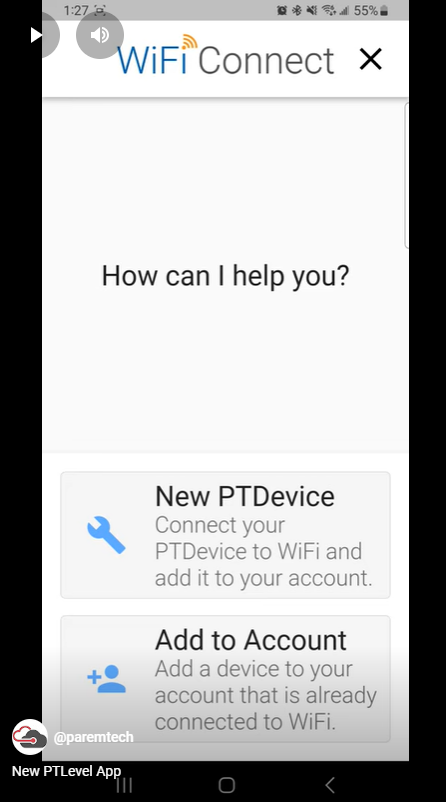
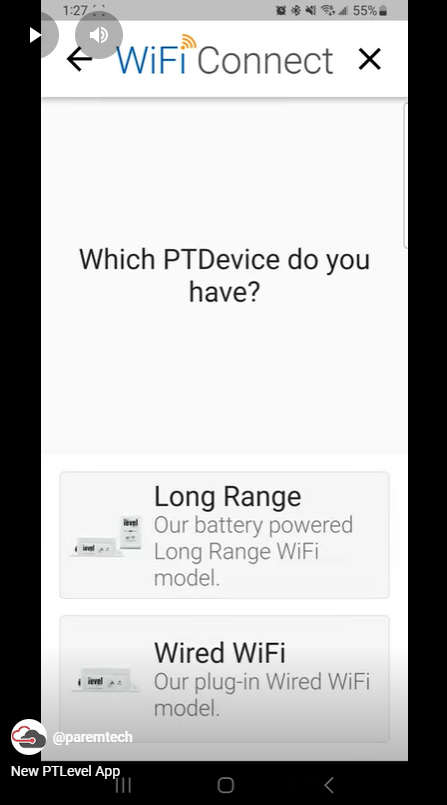
b. When asked "How can I help you?" select "New PTDevice", then select the kind of device you have. For this walk-through we are reviewing the Long Range Wireless, so you can select "Long Range"
WiFi Connect screen asking how it can help, with the New PTDevice option to connect a device to WiFi  WiFi Connect screen in the PTDevices App asking which PTDevice you have, with Long Range and Wired WiFi options

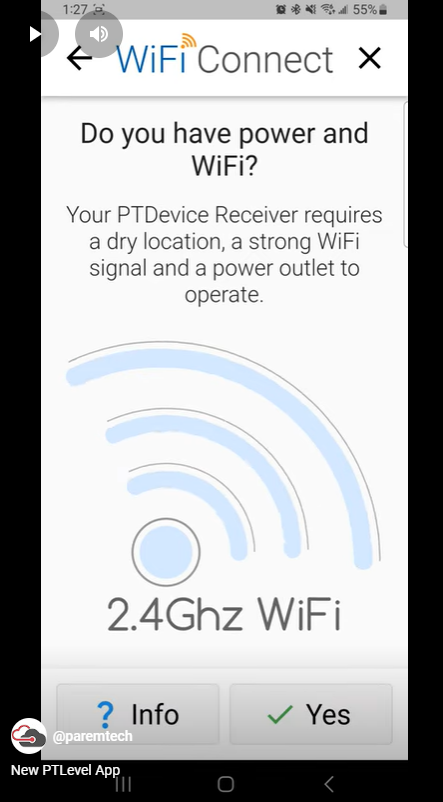
c. Confirm you have 2.5 Ghz WiFi
If not, check out these instructions on how to split your 5gHZ or mesh 2.4/5Ghz to create a single 2.4Ghz network just for devices like the PTLevel, https://support.paremtech.com/portal/en/kb/articles/the-ptlevel-and-2-4ghz-internet-wireless
PTDevices app WiFi Connect screen asking if the receiver has power and WiFi, showing 2.4GHz WiFi and Info and Yes buttons  

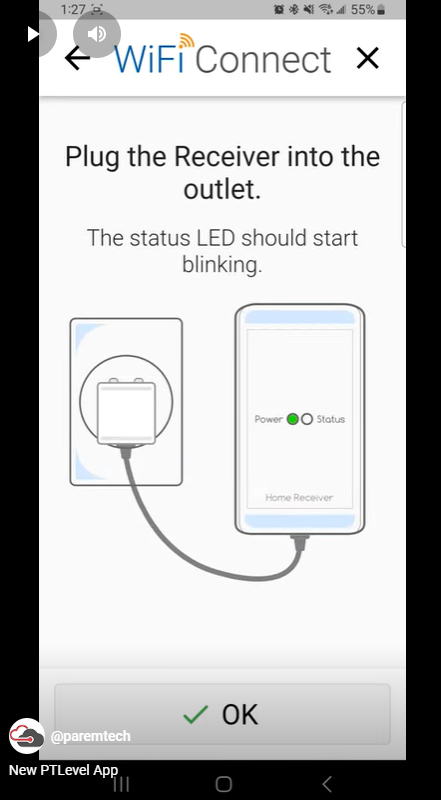
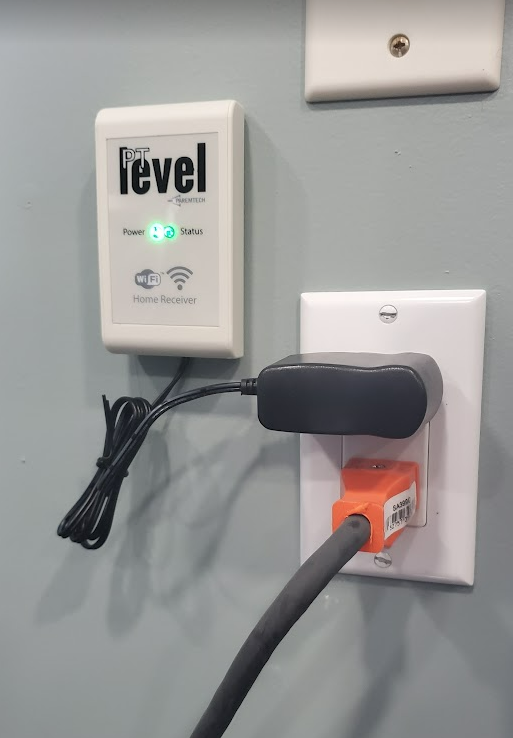
d. Plug your Receiver into an outlet.
WiFi Connect screen in the PTDevices App showing the instruction to plug the Receiver into an outlet, with a diagram of the Receiver plugged in and its Power LED lit green  

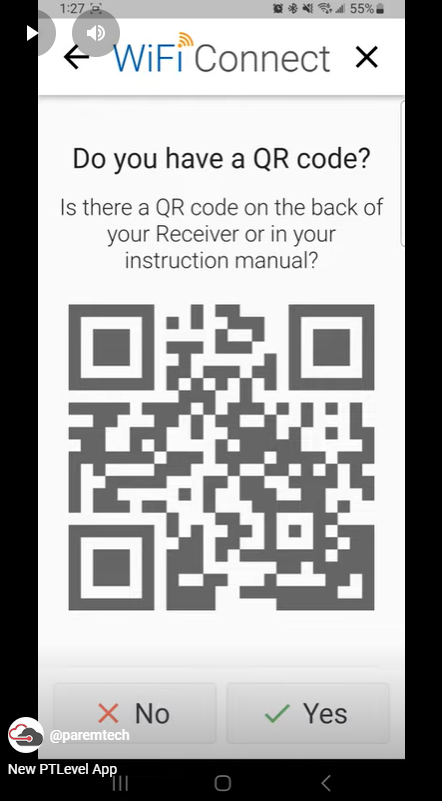
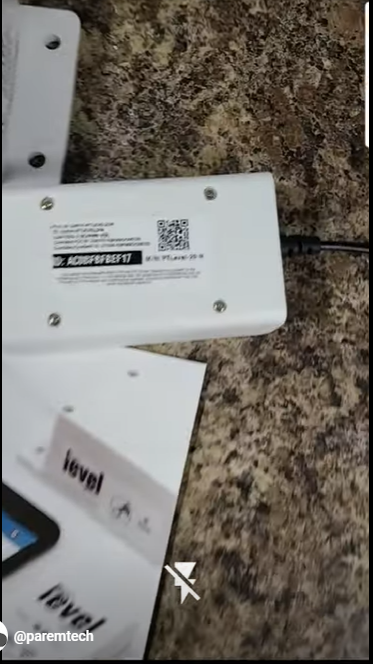
e. Scan the QR code
WiFi Connect screen asking Do you have a QR code, with a sample QR code and Yes and No buttons at the bottom  White PTLevel receiver with the QR code on its label, to scan during setup

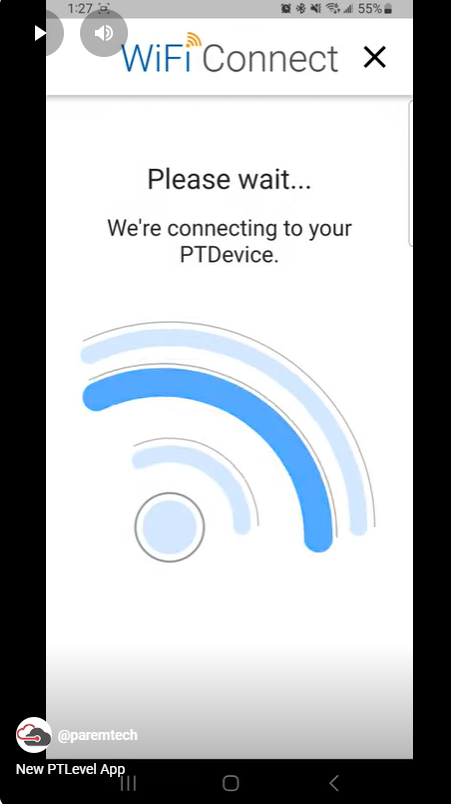
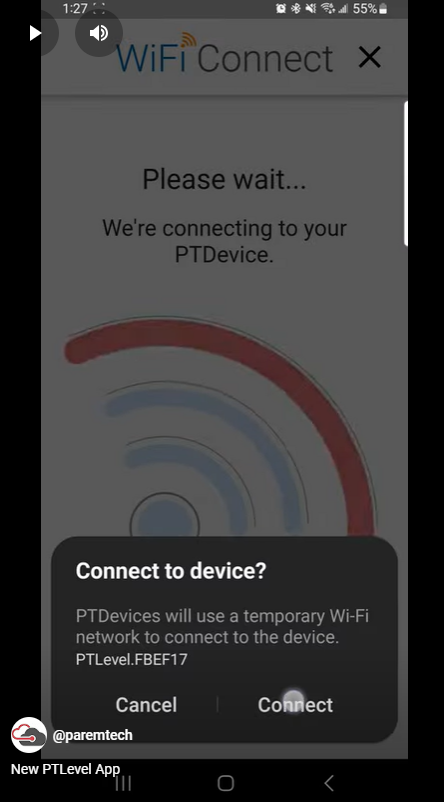
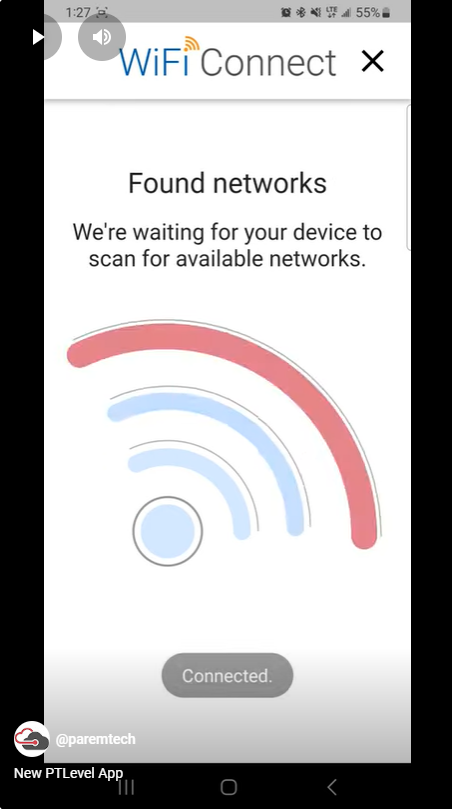
f. Through the next few steps, you're going to give the PTLevel permission to use your WiFi
In the second picture, when the app asks "Connect the device?", click "Connect".
WiFi Connect screen in the PTDevices App showing a Please wait message while the app connects to your PTDevice  PTDevices App dialog asking Connect to device, with the Connect button to tap  

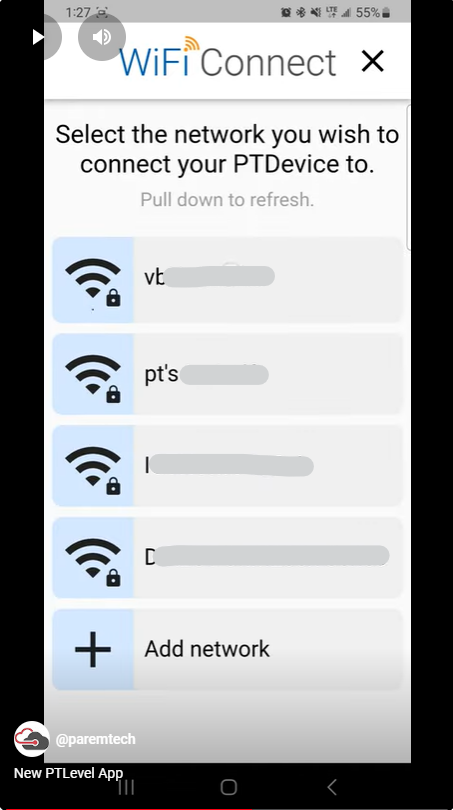
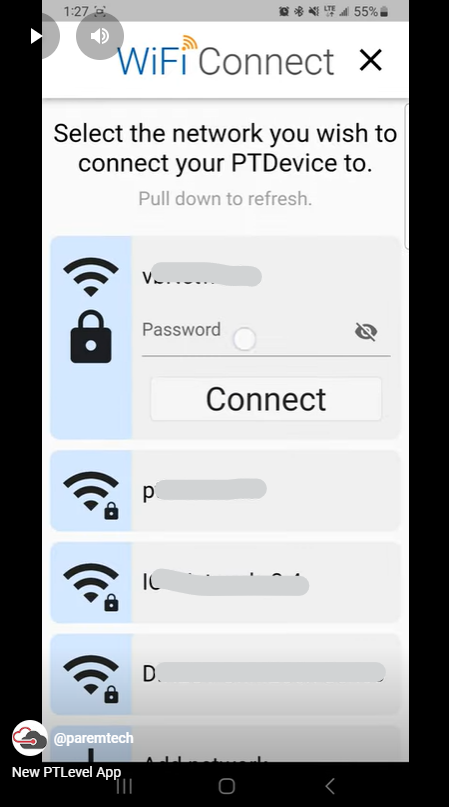
g. Select the network you want your PTLevel connected to, enter your password, and then click "Connect".
If you have a hidden network, select "Add network".
If you have additional firewalls, VPN's, or high-level security settings, you may have to create a special guest network on your router for devices like the PTLevel to securely connect to.
PTDevices App WiFi Connect screen listing nearby networks to choose from, with an Add network option at the bottom  PTDevices App WiFi Connect screen listing nearby networks, with the first network expanded to show its Password field and Connect button

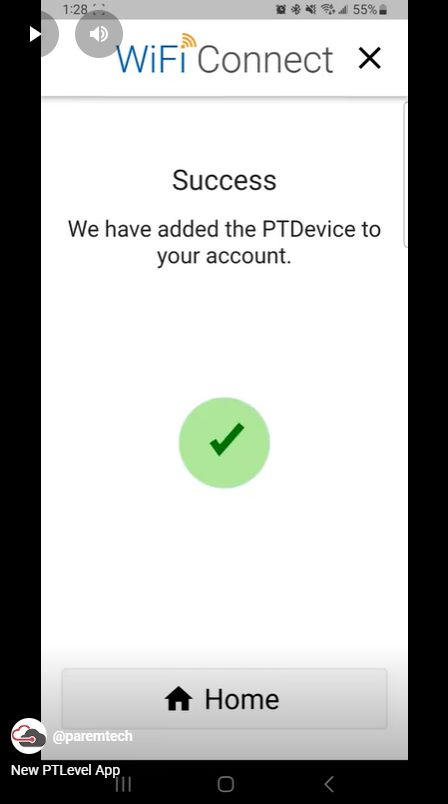
h. Success, your PTLevel has been connected to your WiFi!
Your device automatically and is now being added to your account! 
For it to fully add to the account, make sure to press the transmitter button. The Transmitter will blink once for pressing the button and then 3 times slowly to confirm it reported in.
WiFi Connect success screen saying 'We have added the PTDevice to your account' with a green checkmark and a Home button


Nuevo a partir de octubre de 2023:

Nuestra aplicación PTDevices le guiará paso a paso por el procedimiento de conexión.

Vea el video completo aquí:

https://www.youtube.com/shorts/Oux8kUAs0NM

Descargue la aplicación para Android

Descargue la aplicación para Apple

(Para ver capturas de pantalla del proceso paso a paso de wifi, visite nuestro artículo de configuración del PTLevel para cisternas aquí: https://support.paremtech.com/portal/en/kb/articles/ptlevel-cistern-setup)


¿Se puede conectar el PTLevel a una red oculta? Sí, pero solo a través de la aplicación. Siga la sección Configurar dispositivo como de costumbre. Después de escanear el código QR, aparecerán sus opciones de red. Desplácese hasta la parte inferior de la lista de redes, seleccione "Agregar red" e ingrese los datos y la contraseña.


Si no desea usar la aplicación, aún puede conectarse de la forma tradicional usando ptdevices.com, como se muestra a continuación.


Instrucciones antiguas:

A continuación encontrará algunos videos sobre cómo conectar su receptor PTLevel a su red WiFi de casa. Debe hacerlo si lo está configurando por primera vez o si recientemente cambió la contraseña de su casa o el SSID de su red.

USO CON UN TELÉFONO ANDROID

USO CON UN IPHONE


Valoramos su privacidad

Utilizamos cookies necesarias para que el sitio funcione. Con su permiso, también nos gustaría utilizar cookies opcionales para entender cómo se usa el sitio y mejorar nuestro marketing. Puede cambiar su elección en cualquier momento desde «Configuración de cookies» al pie de cualquier página. Lea nuestra Política de Privacidad