Articles

Procédure de connexion Wi-Fi

20 oct. 2026

CONNECTEZ VOTRE PTLEVEL Haut de page Vous trouverez ci-dessous quelques vidéos expliquant comment connecter votre récepteur PTLevel à votre Wi-Fi à la maison. Vous devez le faire si vous configurez l'appareil pour la première fois ou si vous avez changé le mot de passe de votre domicile ou le SSID du réseau ...

Connecting to WiFi

Our new iOS and Android App makes the connection process easy! 

1. Download the PTDevices App

2. Setup a new device.
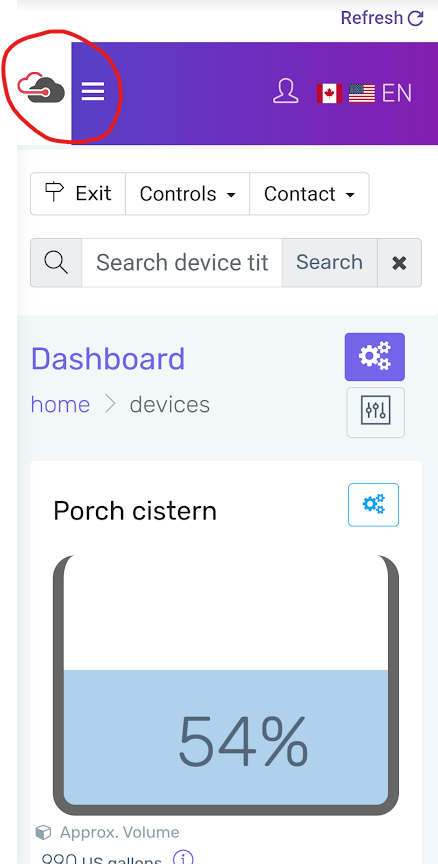
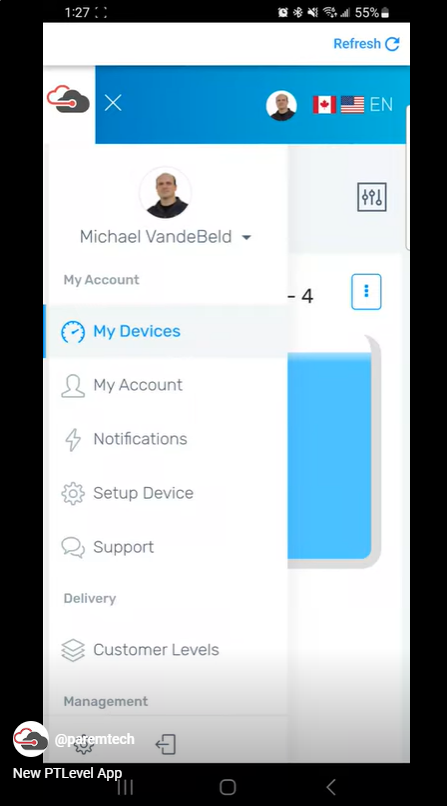
a. Press the 3 lines in the top left to access all your options, then select "Setup Device"
Dashboard screen with the three-line menu icon at the top left circled in red, next to the cloud logo  PTDevices App menu open on a phone, with the Setup Device option listed under My Account

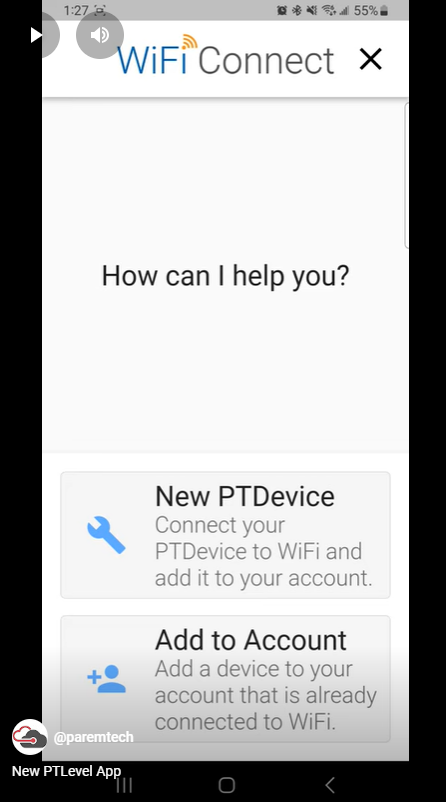
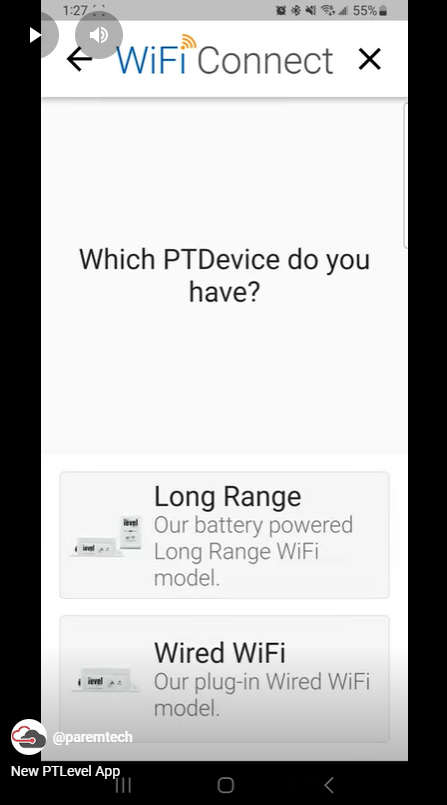
b. When asked "How can I help you?" select "New PTDevice", then select the kind of device you have. For this walk-through we are reviewing the Long Range Wireless, so you can select "Long Range"
WiFi Connect screen asking how it can help, with the New PTDevice option to connect a device to WiFi  WiFi Connect screen in the PTDevices App asking which PTDevice you have, with Long Range and Wired WiFi options

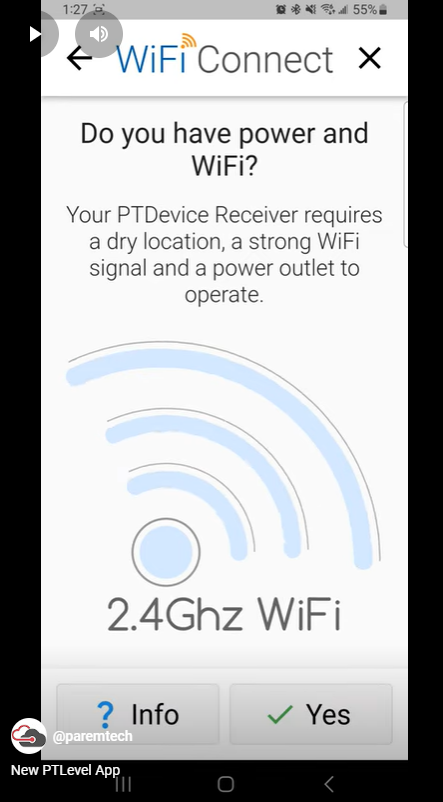
c. Confirm you have 2.5 Ghz WiFi
If not, check out these instructions on how to split your 5gHZ or mesh 2.4/5Ghz to create a single 2.4Ghz network just for devices like the PTLevel, https://support.paremtech.com/portal/en/kb/articles/the-ptlevel-and-2-4ghz-internet-wireless
PTDevices app WiFi Connect screen asking if the receiver has power and WiFi, showing 2.4GHz WiFi and Info and Yes buttons  

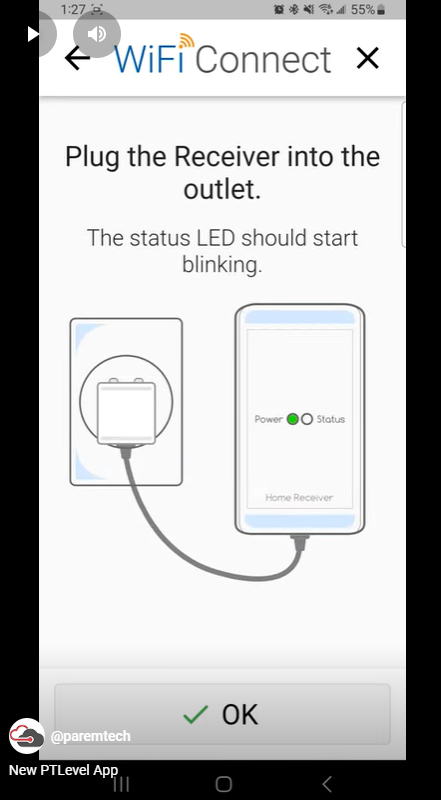
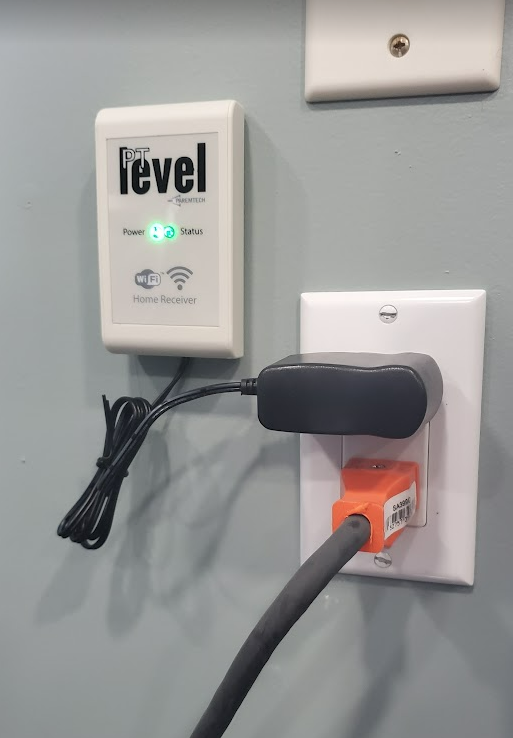
d. Plug your Receiver into an outlet.
WiFi Connect screen in the PTDevices App showing the instruction to plug the Receiver into an outlet, with a diagram of the Receiver plugged in and its Power LED lit green  

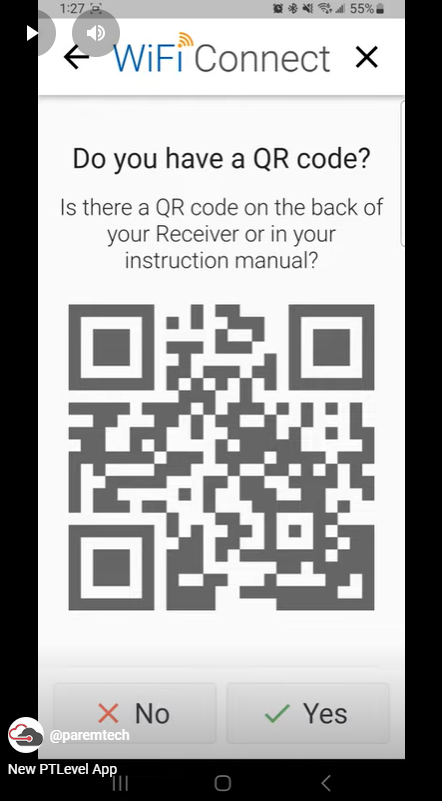
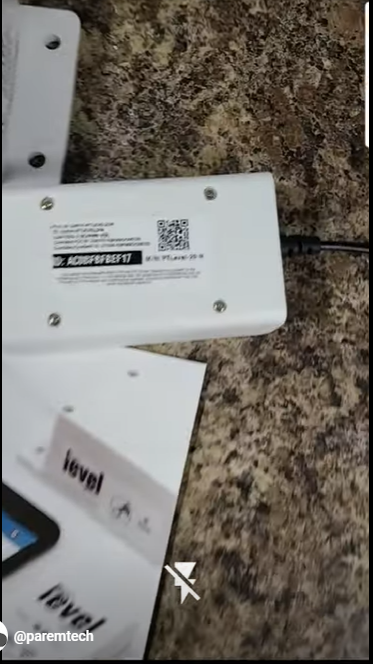
e. Scan the QR code
WiFi Connect screen asking Do you have a QR code, with a sample QR code and Yes and No buttons at the bottom  White PTLevel receiver with the QR code on its label, to scan during setup

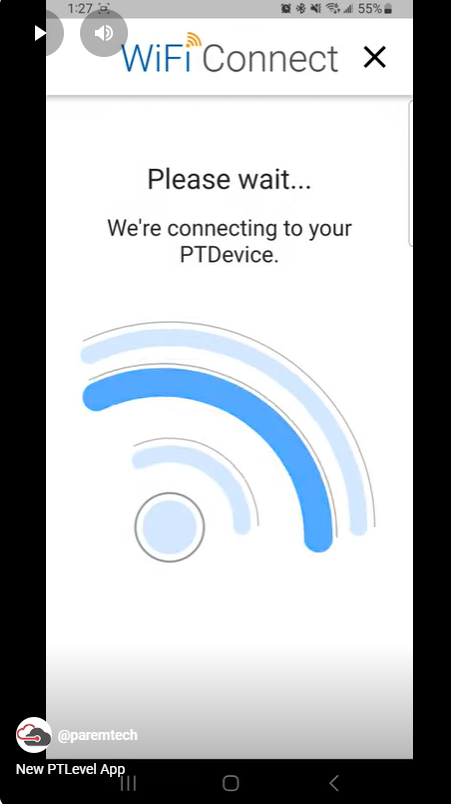
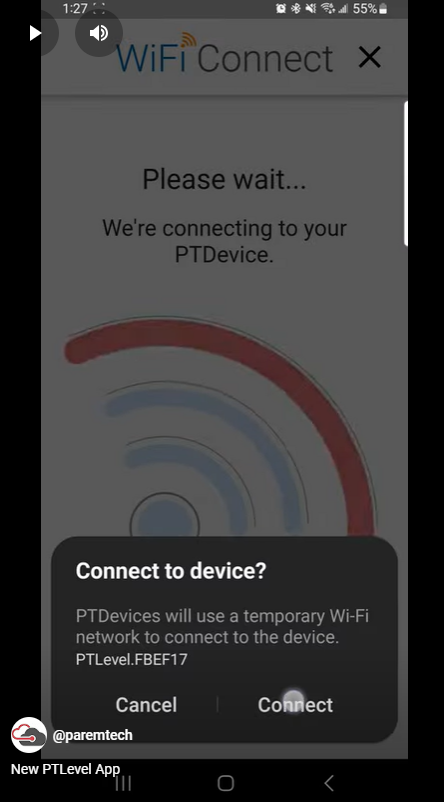
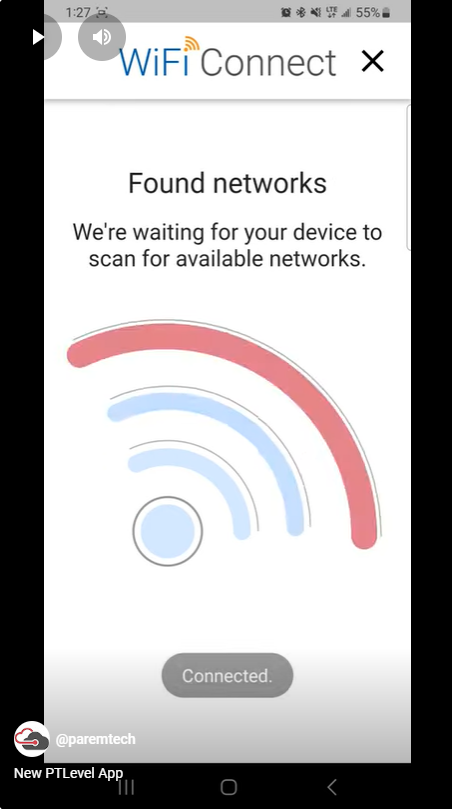
f. Through the next few steps, you're going to give the PTLevel permission to use your WiFi
In the second picture, when the app asks "Connect the device?", click "Connect".
WiFi Connect screen in the PTDevices App showing a Please wait message while the app connects to your PTDevice  PTDevices App dialog asking Connect to device, with the Connect button to tap  

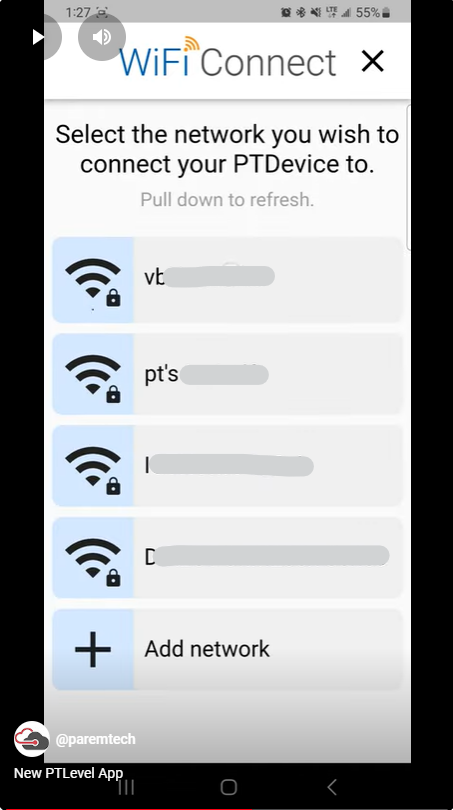
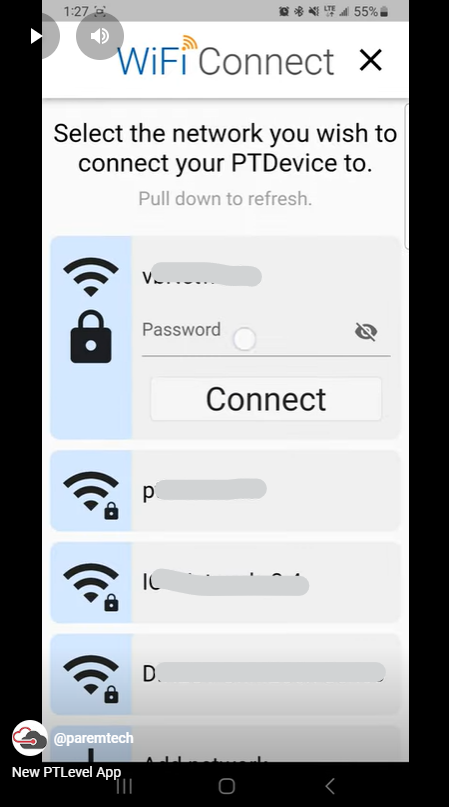
g. Select the network you want your PTLevel connected to, enter your password, and then click "Connect".
If you have a hidden network, select "Add network".
If you have additional firewalls, VPN's, or high-level security settings, you may have to create a special guest network on your router for devices like the PTLevel to securely connect to.
PTDevices App WiFi Connect screen listing nearby networks to choose from, with an Add network option at the bottom  PTDevices App WiFi Connect screen listing nearby networks, with the first network expanded to show its Password field and Connect button

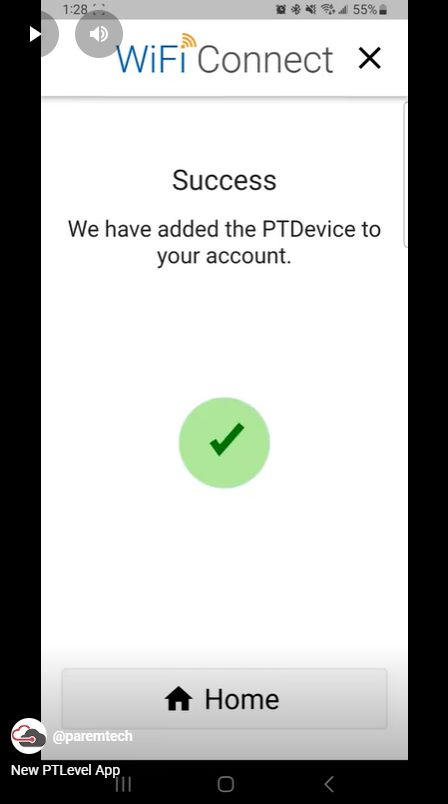
h. Success, your PTLevel has been connected to your WiFi!
Your device automatically and is now being added to your account! 
For it to fully add to the account, make sure to press the transmitter button. The Transmitter will blink once for pressing the button and then 3 times slowly to confirm it reported in.
WiFi Connect success screen saying 'We have added the PTDevice to your account' with a green checkmark and a Home button


Nouveau depuis octobre 2023 :

Notre application PTDevices vous guidera étape par étape dans la procédure de connexion.

Regardez la vidéo complète ici :

https://www.youtube.com/shorts/Oux8kUAs0NM

Télécharger l'application Android

Télécharger l'application Apple

(Pour voir des captures d'écran de la procédure Wi-Fi étape par étape, consultez notre article sur la configuration du PTLevel pour citerne ici : https://support.paremtech.com/portal/en/kb/articles/ptlevel-cistern-setup)


Le PTLevel peut-il être connecté à un réseau masqué? Oui, mais uniquement par l'intermédiaire de l'application. Suivez d'abord la section Configurer l'appareil comme d'habitude. Après avoir numérisé le code QR, les options de réseau s'affichent. Faites défiler la liste des réseaux jusqu'en bas, sélectionnez « Ajouter un réseau » et saisissez les renseignements et le mot de passe.


Si vous ne voulez pas utiliser l'application, vous pouvez quand même vous connecter de l'ancienne manière à l'aide de ptdevices.com, comme illustré ci-dessous.


Anciennes instructions :

Vous trouverez ci-dessous quelques vidéos expliquant comment connecter votre récepteur PTLevel à votre Wi-Fi à la maison. Vous devez le faire si vous configurez l'appareil pour la première fois ou si vous avez récemment changé le mot de passe de votre domicile ou le SSID de votre réseau.

UTILISER UN TÉLÉPHONE ANDROID

UTILISER UN IPHONE


Nous accordons de l’importance à votre vie privée

Nous utilisons des témoins nécessaires au fonctionnement du site. Avec votre permission, nous aimerions également utiliser des témoins optionnels pour comprendre comment le site est utilisé et pour améliorer notre marketing. Vous pouvez modifier votre choix à tout moment à partir des « Paramètres des témoins » au bas de chaque page. Lisez notre politique de confidentialité